
If you don’t clear URL history files, your web browser automatically keeps a detailed record of all web sites you’ve visited usually for more than forty days. The history feature enables you to have a more exact internet surfing experience.
For example, each time you type in a word into the URL address bar, a previously viewed website appears in the drop down menu of your browser. If someone has previously visited www.hotsex.com, This URL will show for all URL you enter beginning with the letter “H”. Clear your URL history to avoid the web browser from displaying your previous URL entries.
However if you want to eliminate only specific private searches from your URL history because there are other users of your PC who would like their URLs logged, you can selectively clear URL history files.
Special Note: Even though you have followed the steps to delete your URL history, it can still be recovered by a savvy PC user. This is the result of Windows recover technology. Only editing your registry manually or using third party software such as a registry cleaner tool or privacy software will allow you to permanently clear URL history files.
Click this link to learn about software that can securely clear url history files permanently
Manually Clear URL History with Internet Explorer
Deleting Internet Explorer’s entire History list Here’s how to delete Internet Explorer’s entire History list:
- Open Internet Explorer.
- Choose Internet Options from the Tools menu.
- Click the “Clear History” button.
Internet Explorer immediately clears the sites and pages you’ve visited.
To stop Internet Explorer from keeping the list altogether, continue to step four, below.
- Set the “Days to keep pages in history” setting to “0”.
Internet Explorer 9
- Click the Gear icon
- Choose Internet Options
- Under Browsing History, choose Delete
- Choose Settings, then Choose 0 for the days to remember history
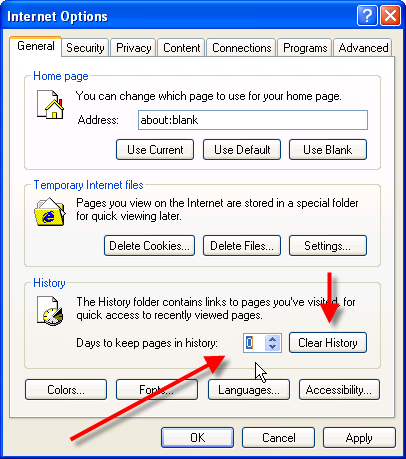
Deleting individual entries from the History list. If you’d like to keep the History enabled for convenience you are able to delete individual sites from the History by doing this:
- Open Internet Explorer and press Ctrl H to “History” menu.
- Right-click the individual site you’d like to purge and select Delete from the pop-up menu.
- Choose Yes to confirm the deletion.
Manually Clear URL History in Firefox
Deleting Firefox’s entire History list
- Open Firefox.
- Choose Internet Options from the Tools.
- Click the Privacy button
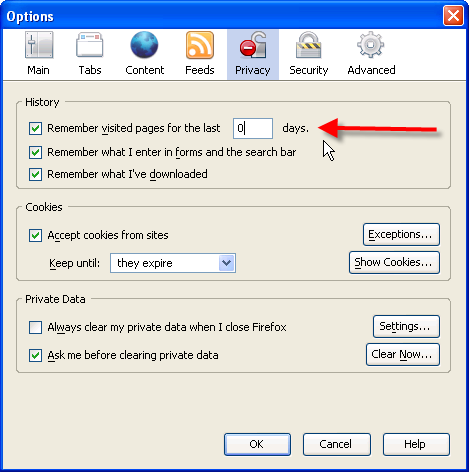
- Click Clear History.
Firefox immediately “forgets” the sites and pages you’ve visited.
To stop Firefox from keeping the list altogether, continue to step five, below.
- Set the “Days to keep pages in history” setting to “0”.
Manually Clear URL History in Chrome
Deleting Chrome’s entire History list
(You can easily access Chrome History with CTRL+H)
- Open Chrome.
- Choose “Wrench”/”Stacks” Icon from the top right corner.
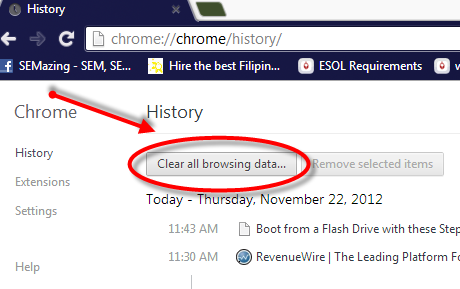
- Click the History
- Click Edit Items.
- Choose Clear All Browsing Data
Google Web History Function
Here is a fun fact. If you are logged into your Gmail account while browsing Google will save your search. Even if you delete your URL history, this history will remain. The only way to stop this is turn off the function that allows Google to save your searches. This is not a bad thing. Google just want to improve your search result, target ads and etc. However, for privacy sake, you may want to disable this function. Check out the video to learn how.