Why learn how to clear address bar history?
For example, each time you type in a word into the URL address bar, a previously viewed website appears in the drop down menu of your browser. If someone has previously visited www.hotsex.com., This URL will show for all URL you enter beginning with the letter “H”. Learn how to clear your address bar history to avoid the web browser from displaying your previous URL entries.
How to Clear Address Bar History with Internet Explorer Manually
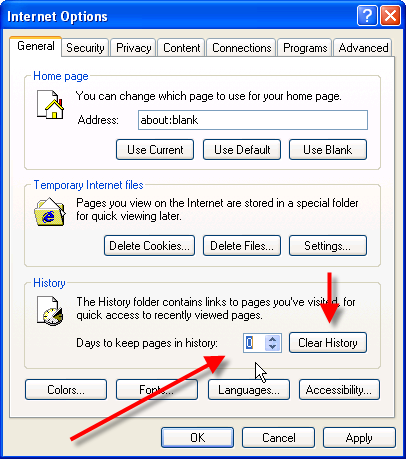
Deleting Internet Explorer’s entire History list Here’s how to delete Internet Explorer’s entire History list:
- Open Internet Explorer.
- Choose Internet Options from the Tools menu.
- Click the “Clear History” button.
Internet Explorer immediately clears the sites and pages you’ve visited
To stop Internet Explorer from keeping the list altogether, continue to step four, below.
- Set the “Days to keep pages in history” setting to “0”.
Deleting individual entries from the History list. If you’d like to keep the History enabled for convenience you are able to delete individual sites from the History by doing this:
- Open Internet Explorer and press Ctrl H to “History” menu.
- Right-click the individual site you’d like to purge and select Delete from the pop-up menu.
- Choose Yes to confirm the deletion.
Clear Clear Address Bar History in Firefox Manually
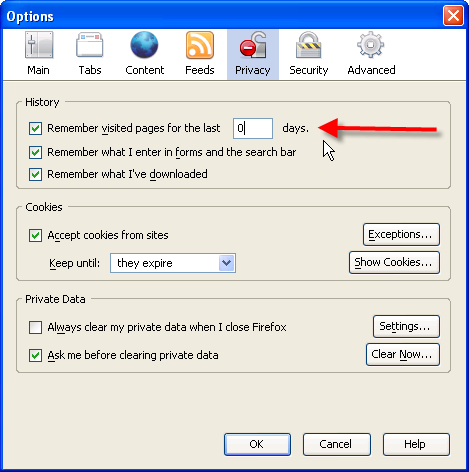
Deleting Firefox’s entire History list
- Open “Firefox” web browser.
- Choose “Internet Options” from the Tools.
- Click the “Privacy” button
- “Clear History”.
Firefox immediately “forgets” the sites and pages you’ve visited.
To stop Firefox from keeping the list altogether, continue to step five, below.
- 5. Set the “Days to keep pages in history” setting to “0”.
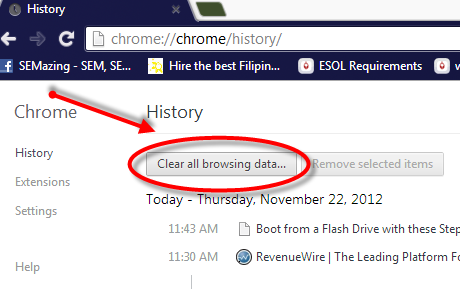
Chrome is one the fastest browser on the market. You can easily clear the address bar history by pressing CTRL+H when the browser is open and then choosing to delete all history or you can delete particular items. Make sure you are logged out of your Google account or the history will be saved in your Google account. Here is the manually way to delete Chrome’s history.
- Click the Stacks/Tools icon
- Choose History
- Click Clear all browsing history