
Windows loads tons of programs when your computer startups. Remove startup programs in in Vista, Windows XP and Windows 7 with ease. You will instantly rewarded with a smoother and faster startup. In addition, You computer will benefit from a lighter resource load thus getting a boost in overall performance.
How to Remove Startup Programs in Windows XP
Method 1: System Configuration Utility (MSCONFIG)
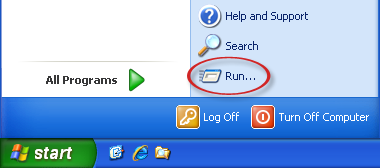
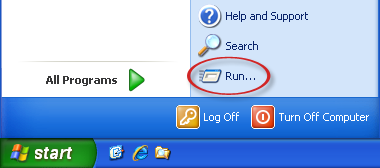
- Click Start and then click Run.
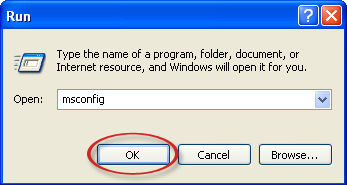
- Type msconfig in the text box and click OK.
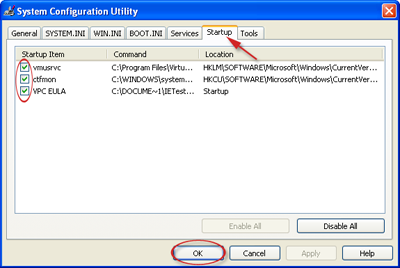
- Under the Startup tab, deselect the programs that you like to remove from startup, and click OK.
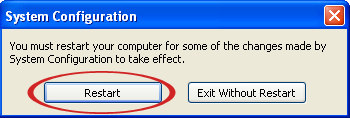
- Click Restart to reboot your computer, and the changes will take effect.
Method 2: Registry
- Click Start and then click Run.
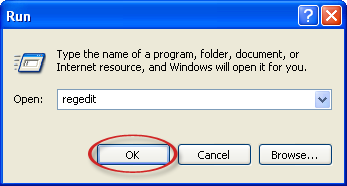
- Type regedit in the text box and click OK.
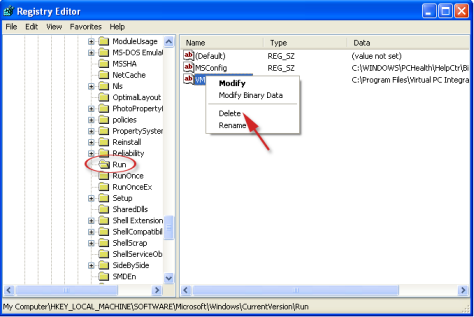
- In the left pane of the Registry Editor, browse to the following location: HKEY_LOCAL_MACHINE>SOFTWARE>Microsoft>Windows>CurrentVersion>Run. In the right pane, right click on any startup programs that you would like to remove, and click Delete.
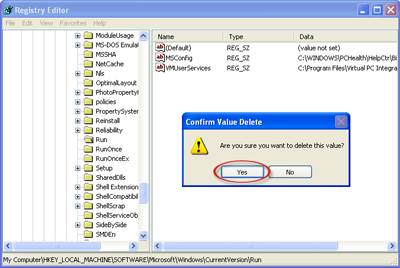
- Click Yes in the confirmation box.
Method 3: Startup folder
- Click Start and then click My Computer.
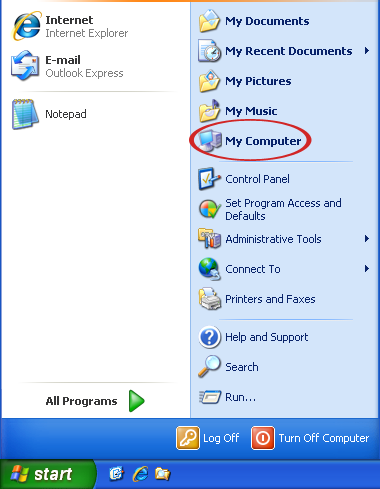
- Browse to the following location: C:\Documents and Settings\All Users\Start Menu\Programs\Startup.
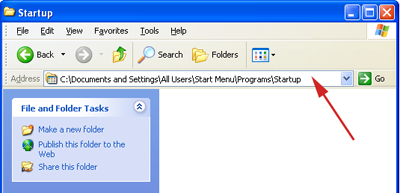
- Delete the shortcuts of the startup programs that you would like to remove.
Method 4: From within the program
1. Check if the program in question gives you the option of disabling the autostart feature – via a right-click on the System Tray icon or maybe an “options” menu from within the program.
How to Remove Startup Programs in Windows Vista / Windows 7
Method 1: System Configuration Utility (MSCONFIG)
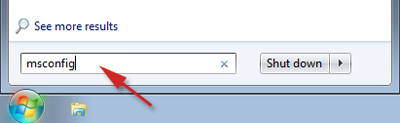
- Click Start, type msconfig in the Search box, and then press Enter.
- Under the Startup tab, deselect the programs that you like to remove from startup, and click OK.
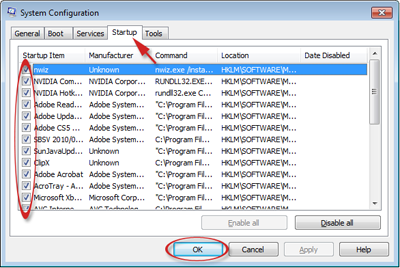
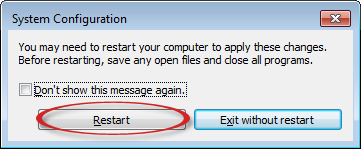
- Click Restart to reboot your computer, and the changes will take effect.
Method 2: Registry
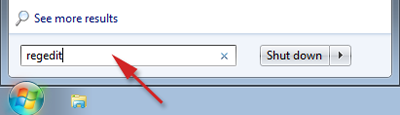
- Click Start, type regedit in the Search box, and then press Enter.
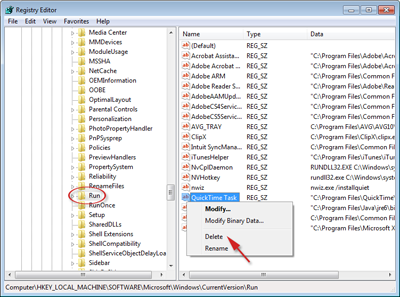
- In the left pane of the Registry Editor, browse to the following location: HKEY_LOCAL_MACHINE>SOFTWARE>Microsoft>Windows>CurrentVersion>Run. In the right pane, right click on any startup programs that you would like to remove, and click Delete.
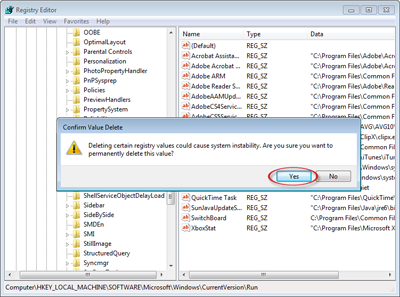
- Click Yes in the confirmation box.
Method 3: From within the program
1. Check if the program in question gives you the option of disabling the autostart feature – via a right-click on the System Tray icon or maybe an “options” menu from within the program.
Popular Articles
Best Registry Cleaner
4 WAYS TO SPEED UP YOUR PC
Fix a Slow Internet Connection
Speed Up Internet Videos